

Key Takeaways
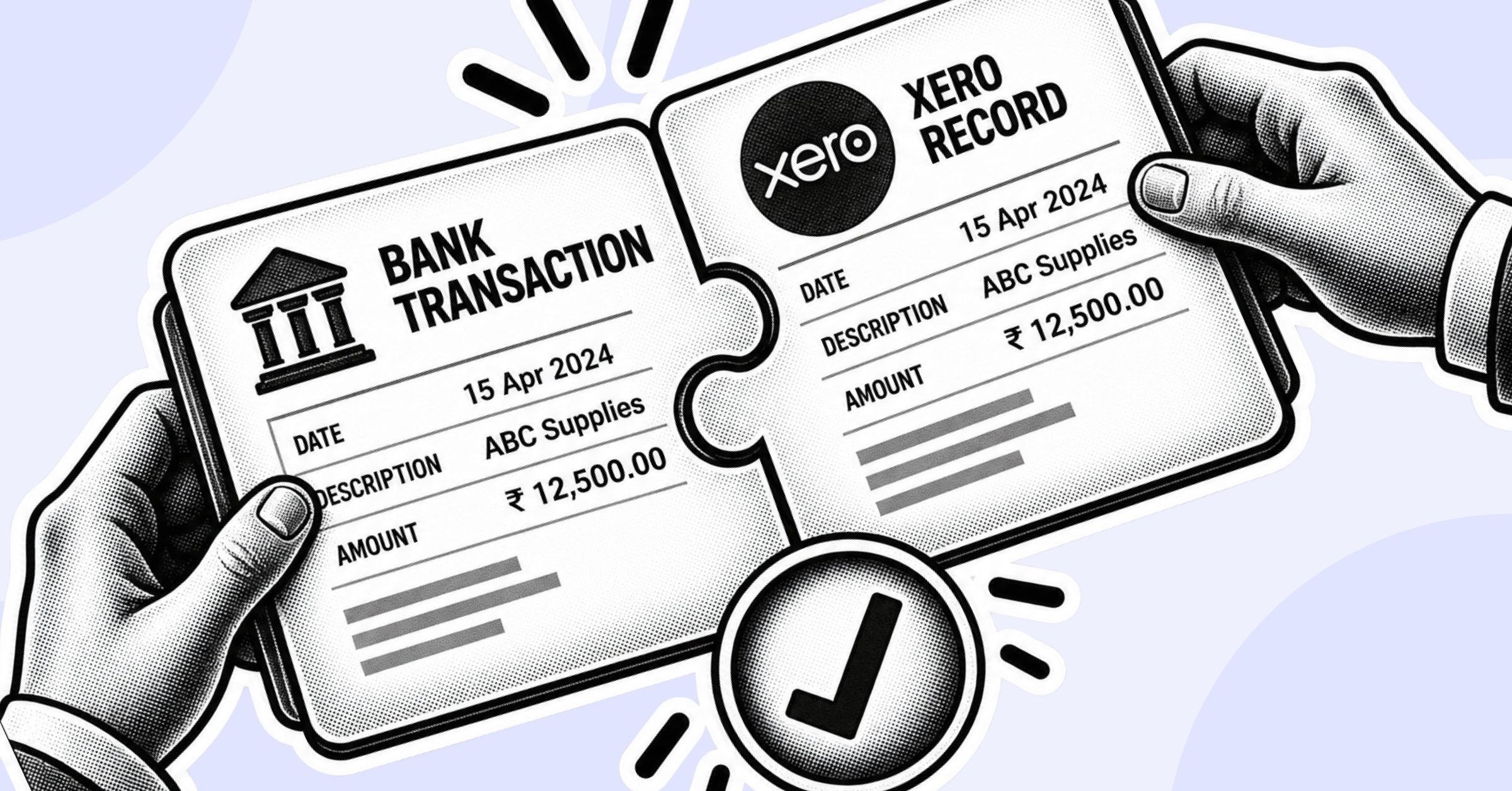
- Reconciling in Xero means confirming that every transaction on your bank statement has a matching entry in your books, using Xero’s suggested-match engine to do most of the matching automatically.
- The core workflow is the same every time: review suggested matches, confirm or correct them, and handle anything Xero can’t match automatically through Create, Find & Match, or Transfer.
- Bank rules and cash coding are the two features that turn reconciliation from a line-by-line chore into a batch process, but only once you trust the rule logic enough to stop checking every match manually.
- Reconciling weekly, or daily for high-volume accounts, catches errors while the transaction is still easy to trace. Waiting until month-end turns a two-minute fix into a research project.
- Xero’s reconciliation model is built for a single entity with moderate transaction volume. Multiple entities, multiple currencies, or a transaction volume that outpaces manual review are the signals that it’s time to look at a dedicated reconciliation platform.
Reconciling in Xero is the process of matching every transaction on your bank statement against the corresponding entry in your accounting records, so your books and your actual bank balance agree. Xero automates most of this by pulling in a bank feed and suggesting matches, but “automated” doesn’t mean “hands-off.” Someone still has to review what Xero suggests, handle what it can’t match, and know what to do when the numbers don’t tie out.
A quick overview: what reconciliation in Xero actually checks, the core step-by-step matching workflow, how to set up bank rules and use cash coding to speed things up, how to handle multiple invoices paid in one transaction, reconciling credit cards and non-bank accounts, how often to do it, common errors and fixes, and when Xero’s built-in reconciliation stops being enough.
Does Xero Have Reconciliation? What It Actually Checks
Yes. Xero’s reconciliation feature compares the transactions that come in through your connected bank feed against the transactions already recorded in your accounting records (invoices, bills, manual journal entries) and confirms they match. It exists to catch three things: a transaction that hit your bank but was never recorded in your books, a transaction recorded in your books that never actually cleared the bank, and a transaction recorded twice. Without reconciliation, your Xero balance and your actual bank balance can drift apart silently, and the gap usually isn’t visible until it’s already large enough to be a problem.
How to Reconcile Bank Transactions in Xero (Step by Step)
The core reconciliation workflow in Xero follows the same pattern every time, whether you’re reconciling one transaction or fifty:
- Open the bank account you want to reconcile from your Xero dashboard and select “Reconcile [X] Items,” where X is the number of transactions waiting for review.
- Review each suggested match. Xero compares the amount, date, and description of each bank transaction against your recorded entries and proposes a match where it finds one.
- Confirm matches that are correct. If the description and amount line up with what you expect, accept the suggested match and move to the next transaction.
- Handle transactions Xero can’t match automatically. For anything without a clean suggested match, you’ll choose one of three options: Create a new transaction if nothing was recorded yet, use Find & Match to search your existing invoices and bills for the right entry, or use Transfer if the transaction is money moving between your own accounts.
- Repeat until every transaction on the statement has a matched or created entry. The account isn’t reconciled until the running balance in Xero matches your actual bank statement balance for the period.
The step most people rush is reviewing the suggested match instead of just accepting it. Xero’s matching logic is good but not infallible, especially with similar amounts or recurring vendors; a quick check on the description and date before confirming avoids a mismatch that’s much harder to untangle later.
How to Set Up Bank Rules in Xero for Faster Reconciliation
Bank rules let Xero automatically categorize and match recurring transactions without manual review each time, which is where most of the real time savings come from once your account is established.
- Create a rule based on transaction conditions, such as a specific payee name, a description containing certain text, or an amount range, and tell Xero what account and tax rate to apply automatically when a transaction matches those conditions.
- Use Spend Money rules for recurring outgoing payments, like a monthly software subscription or a recurring vendor payment, so Xero codes them correctly without you reviewing the same transaction every month.
- Use Receive Money rules for recurring incoming payments, such as a predictable customer payment or interest income, with the same logic in reverse.
- Use Transfer rules for regular movements between your own connected accounts, so an automatic sweep between a checking and savings account doesn’t need manual categorization every time.
- Review your rules periodically, not just when you set them up. A rule built around a vendor’s old payment description will silently stop matching if that vendor changes their statement descriptor, and you won’t necessarily notice until unmatched transactions start piling up again.
How to Use Cash Coding in Xero for Bulk Reconciliation
Cash coding is Xero’s tool for reconciling multiple transactions at once instead of one at a time, and it’s the feature most reconciliation guides mention in passing but don’t explain well enough to actually use.
- Access cash coding from the bank account’s transaction list rather than the standard reconcile screen; it presents transactions in a spreadsheet-style view instead of the one-at-a-time match screen.
- Assign account codes and tax rates in bulk across multiple similar transactions in a single action, which is significantly faster than reviewing each one individually when you have a batch of same-category transactions (a run of similar vendor payments, for example).
- Use it for catch-up work, not routine reconciliation. Cash coding is most valuable when you’re reconciling a backlog or bulk-categorizing a large batch of similar transactions, not as your everyday reconciliation method, since it trades some of the line-by-line verification for speed.
How to Reconcile Multiple Invoices Paid in One Transaction in Xero
A single bank deposit that covers several customer invoices is one of the more common places manual reconciliation slows down, because a straightforward one-to-one match doesn’t apply.
- Use Find & Match instead of the default suggested match when a deposit amount doesn’t correspond to a single invoice; the suggested-match engine is built for one-to-one matching and won’t reliably propose a many-to-one combination on its own.
- Search and select all the invoices that sum to the deposit amount within the Find & Match screen, which lets you tie one bank transaction to multiple invoice records simultaneously.
- Verify the total matches exactly before confirming. A partial match (the customer paid slightly less than invoiced, for a discount or a bank fee) needs to be handled as an adjustment rather than forced into an exact match, or it will leave a small unreconciled difference that resurfaces later.
Reconciling Credit Cards and Non-Bank Accounts in Xero
Credit card accounts and non-bank accounts (a petty cash account, a loan account) follow the same underlying reconciliation logic as a bank account, with a few adjustments.
- Connect the credit card account through a bank feed the same way as a checking account, where the card issuer supports it, and reconcile it on the same schedule as your other accounts rather than treating it as a lower priority.
- Watch for the timing gap between purchase and statement. A credit card charge often posts to the feed before it appears on the monthly statement, which can make a transaction look unreconciled when it’s simply pending.
- For accounts without a bank feed, reconcile manually against conversion balances or statements. Non-bank accounts still need the same core check, that the account’s transaction history in Xero agrees with the external record, even without an automated feed doing the matching.
How Often You Should Reconcile in Xero
Reconciliation frequency should scale with transaction volume, not run on a fixed calendar habit.
- Daily or several times a week for high transaction volume, so a mismatch is caught while the transaction is still fresh and easy to trace back to its source.
- Weekly for most small businesses, which is frequent enough to catch errors early without turning reconciliation into a daily task.
- Monthly at an absolute minimum, timed to close out before month-end reporting, though waiting this long means any error has had weeks to compound or get harder to trace.
The practical reason to reconcile more often than “whenever there’s time” is that the cost of finding an error scales with how long it’s been sitting. A mismatch from three days ago takes a minute to explain. The same mismatch from six weeks ago often means digging through old emails to remember what actually happened.
Common Xero Reconciliation Errors and How to Fix Them
A few errors account for most of the “why doesn’t this balance” moments in Xero, and most of them have a specific, findable cause rather than being a mystery.
- Duplicate matches from overlapping bank feeds. If a bank feed disconnects and reconnects, or gets set up twice, the same transaction can be imported and matched twice, inflating the account balance. Check the transaction list for exact duplicates by date and amount if the balance is off by a suspiciously specific figure.
- Unreconciled opening or conversion balances. When you first move an account to Xero, the starting balance has to be entered and matched correctly. A mismatched opening balance will make every subsequent reconciliation off by the same fixed amount until it’s corrected at the source.
- A stale bank feed that stopped syncing. Bank feed connections occasionally drop without an obvious notification. If new transactions haven’t appeared in a while, check the feed’s connection status before assuming there’s simply nothing to reconcile.
- A bank rule matching the wrong account. An overly broad rule condition (matching on a generic description rather than a specific payee) can silently miscode transactions that happen to share a keyword, which usually surfaces as an account balance that looks wrong for reasons that aren’t obvious from the transaction list alone.
- A transaction reconciled to the wrong side of a transfer. Moving money between two of your own accounts requires using the Transfer function specifically; using Create or Find & Match instead can result in the transaction being recorded as income or an expense rather than an internal transfer, overstating revenue or costs.
When Xero’s Reconciliation Stops Scaling
Xero’s reconciliation tools are built for a single entity with a manageable transaction volume, and they do that job well. The signals that it’s time to look beyond Xero’s built-in reconciliation are specific, not just “the business grew”:
- Multiple legal entities that need to reconcile and eliminate intercompany transactions against each other, which Xero’s single-entity reconciliation model isn’t designed to handle natively.
- Transaction volume that outpaces what a person can review, where even well-configured bank rules and cash coding can’t keep pace with the number of exceptions needing manual judgment.
- Multiple currencies and entities requiring consolidated, audit-ready reconciliation, which is a different problem than matching a single bank feed against a single ledger.
Finance teams that hit these limits usually aren’t looking to replace Xero outright. They’re looking for a reconciliation layer that can sit above multiple entities and systems, Xero included, and handle the matching, netting, and controls that a single-entity tool wasn’t built for. If that’s the point you’re at, Bluecopa’s account reconciliation platform is worth a look for how multi-entity, high-volume reconciliation gets automated without losing the audit trail.
Frequently Asked Questions
1. Does Xero automatically reconcile bank transactions?
Xero suggests matches automatically based on amount, date, and description, but it doesn’t confirm them without review. Someone still needs to check and accept each suggested match, or set up bank rules for recurring transactions to reduce that manual step.
2. What’s the difference between bank rules and cash coding in Xero?
Bank rules automatically categorize and match recurring transactions going forward based on conditions you set. Cash coding is a bulk-reconciliation tool for coding a batch of transactions at once, typically used to catch up on a backlog rather than for day-to-day reconciliation.
3. How do I reconcile a deposit that covers multiple invoices in Xero?
Use Find & Match instead of the default suggested match, then search and select all the invoices that together sum to the deposit amount, so one bank transaction gets tied to several invoice records at once.
4. Why doesn’t my Xero account balance match my actual bank balance?
The most common causes are a duplicate matched transaction from an overlapping bank feed, an incorrect opening or conversion balance, a stalled bank feed connection, or a transaction that should have used Transfer but was recorded as income or an expense instead.
5. How often should I reconcile in Xero?
Daily or several times a week for high transaction volume, weekly for most small businesses, and monthly at an absolute minimum. Reconciling more often catches errors while they’re still easy to trace.
6. Can Xero handle reconciliation across multiple entities?
Not natively. Xero’s reconciliation is built around a single entity’s bank feed and ledger. Businesses managing intercompany transactions across multiple legal entities typically need a dedicated reconciliation layer on top of, or instead of, Xero’s built-in tools.